There comes a point in life where your PC is just not up to the job anymore. Chances are this Computer is just sitting there in the garage, collecting dust as time passes, just waiting for you to chuck it in the tip. However, instead of it just lying there, why not turn it into something useful? When it comes to Computers, no matter how slow it may seem today, it was built for a purpose. One particular task which pretty much any Computer can do, is act as a Web Server. If you plan on making a relatively small or medium site, then neither processing or Bandwidth should be a problem. Without content such as videos and images, a typical web page is only about 60kb after all. This article will take you through some small, and simple steps to get your server up and running so you can host your own Website.
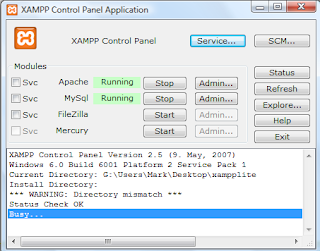
1. Firstly, you will need the right software in order to run your server. The best option available is Apache, but often this can seem a bit confusing for beginners and it isn't always configured to people's needs. A package known as XAMPP is a very simple and neat program which can hide any of these complications, and it can be downloaded from
here.
2. If you haven't already, add a firewall rule for the XAMPP program you are using and open tcp ports 80 and 3306. You should access the Control Panel and start the Apache and MYSQL modules. Note if you want these to start up these automatically when your Computer starts, you will need to add these as Services via the Services button on the panel. SQL is also not required, but you will need it if you intend to store data, add a user login, or a forum to your site.
3. In your web browser, type in "http://localhost/security/xamppsecurity.php" and change the password for the MYSQL database, and also add a username and password for the XAMPP directory. This will make sure no-one on your network, or anywhere on the Internet can access the pages you are seeing, or edit any important files.
4. Next you will need to ensure that the correct ports are open on your router so that people can see your site across the Internet. For most routers, type into your browser "http://192.168.0.1", or "http://192.168.1.0" if you are using a Belkin router like the one in this tutorial. You should look for a link flagged as "Virtual Servers", "ports", "security", or just simply "firewall". Add an inbound firewall rule for ports 80 and 3306, and point it to your Server's IP address. If you don't know your local ip address, type in "ipconfig" into the command prompt and it should be labelled as the "IPv4 address".
5. Finally, you need to go to the XAMPP directory on your computer (often located at C:/Program Files/XAMPP), go to htdocs and change the index page to your site homepage. It is important that your homepage is named index in order for your site to be found directly. Any images, or files which you add to your site will need to be added here in the htdocs folder, and not outside of it or in the XAMPP sub-directory.
6. Now you have a website! Without content, and a domain name of course but nevertheless that's the bulk of the setup done and dusted. Just go to
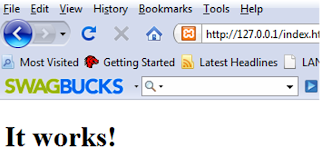
http://whatismyipaddress.com to find out what your global IP address is, and then type the same number into your browser. If you followed the instructions correctly, you should be able to see your web page. The very last step is adding a domain name to your site. I will be posting another article on how to create your own free domain name, and to make sure it keeps track of your own Server. Have Fun!